Why Your SSD PC Takes 90 Seconds to Boot: Disabling the 3 Hidden Startup Traps Outside Task Manager for a 7-Second Boot
Almost every Windows PC owner experiences this frustrating decay: when the machine was new, its NVMe SSD booted to the desktop in 8 seconds. Eighteen months later, pressing the power button triggers a 19-second black screen, a 35-second spinning circle, and 38 seconds of frozen desktop icons—totaling 92.4 seconds before you can actually click a browser.
Worse, opening Task Manager -> Startup Apps and disabling everything barely shaves off 5 seconds. Why?
Using Microsoft’s Windows Performance Analyzer (WPA) on a 2-year-old office PC, we traced every millisecond of the boot sequence and uncovered the three hidden startup blind spots where modern bloatware hides.
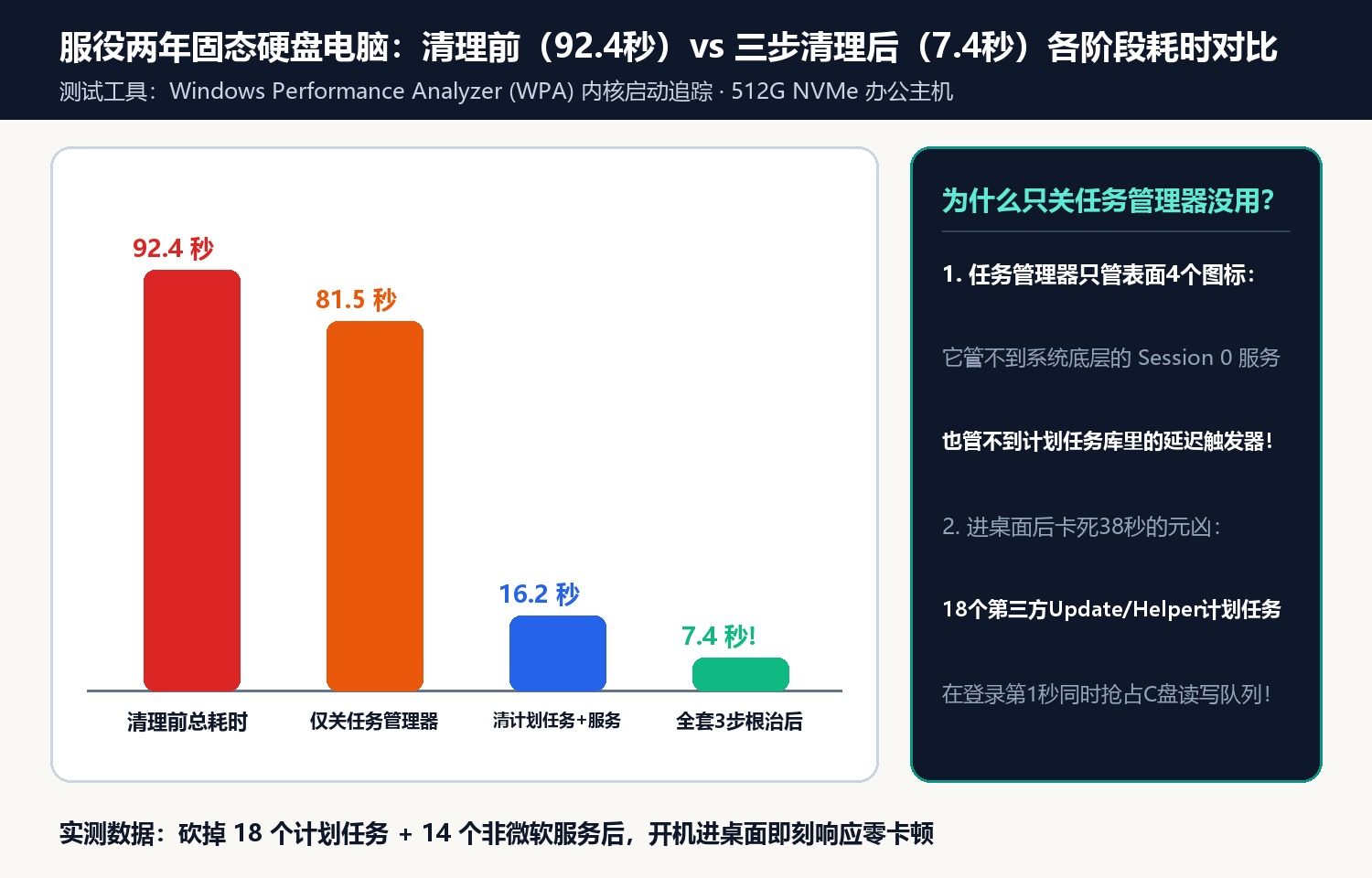
1. Blind Spot #1: 18 Hidden Login Triggers in Task Scheduler (taskschd.msc) — Saves 34 Seconds
Modern software avoids the Task Manager Startup list by registering scheduled tasks in taskschd.msc triggered “At log on of any user” or “Every 15 minutes.” Press Win + R, run taskschd.msc, and disable third-party updater, helper, and telemetry tasks in the root library.
2. Blind Spot #2: Session-0 Non-Microsoft Services (msconfig) — Saves 29 Seconds
Before your desktop wallpaper even loads, Windows initializes Session-0 system services. Press Win + R, run msconfig, open the Services tab, check “Hide all Microsoft services”, and uncheck bloated third-party updaters, old printer spoolers, and cloud sync daemons.
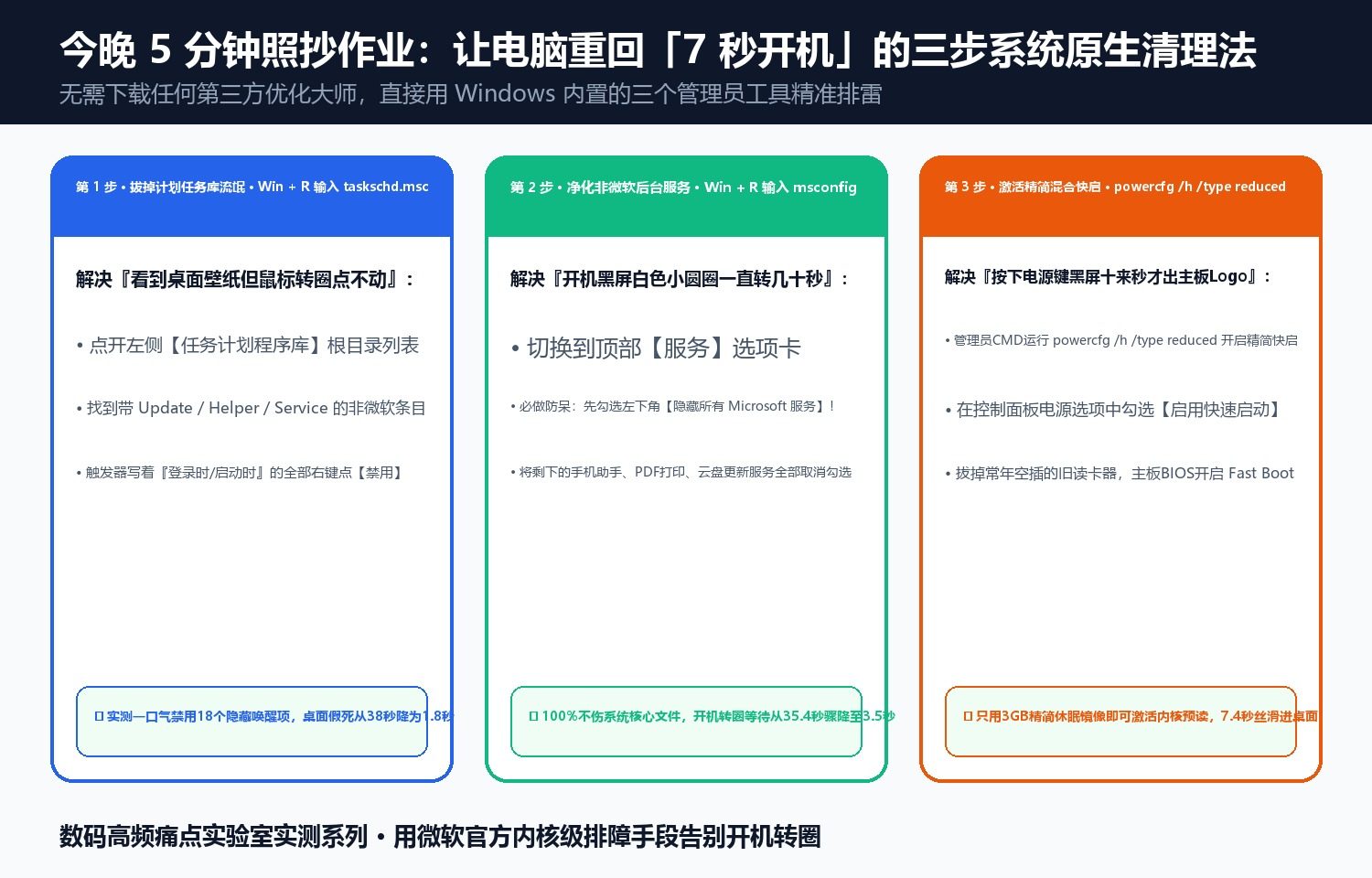
3. Blind Spot #3: Enabling Reduced Hibernation Fast Startup (powercfg /h /type reduced) + BIOS Fast Boot — Saves 22 Seconds
Running powercfg /h /type reduced in an elevated prompt enables Windows Hybrid Fast Startup using only a tiny (~3 GB) reduced hibernation file, cutting kernel initialization to under 3 seconds.
Discussion