2026-11-04
Why Is Your 16GB PC Using 85% RAM with Almost Nothing Open? These Two 1MB Microsoft Tools Reclaimed 10GB in 3 Minutes
Yesterday our lab’s C-drive cleanup benchmark (WizTree) resonated with over 100,000 readers. Today we tackle the #2 most requested Windows mystery:
“My laptop has 16GB of RAM. Right after booting up with just a browser and messaging app open, the fan spins loudly and Task Manager says 85% of my memory (13.6 GB) is in use—even though adding up all the visible apps in the Processes tab barely equals 4 GB! Who stole the other 9 GB?”
Instead of installing shady third-party “RAM booster” adware, we used two official 1MB portable utilities built by Microsoft’s own Sysinternals team—RAMMap and Autoruns—to audit and reclaim 10.2 GB of RAM in 3 minutes.

1. Where the Missing 9.8 GB of RAM Was Hiding
| Memory Category (16GB Total) | Visible in Task Manager? | Actual Usage in RAMMap | Root Culprit |
|---|---|---|---|
| 1. Active Foreground Apps | ✅ Yes | 3.8 GB | Browser, chat client, and Office |
| 2. Hidden Scheduled Tasks & Services | ⚠️ Buried in 100+ background services | 4.6 GB | Cloud sync daemons, PDF updaters, telemetry |
| 3. Bloated Standby & Mapped Files | ❌ Completely Hidden | 3.9 GB | Unreleased file caches after days of Sleep/Wake |
| 4. Kernel Driver Locked Memory | ❌ Completely Hidden | 1.3 GB | Orphaned Android emulator & banking drivers |
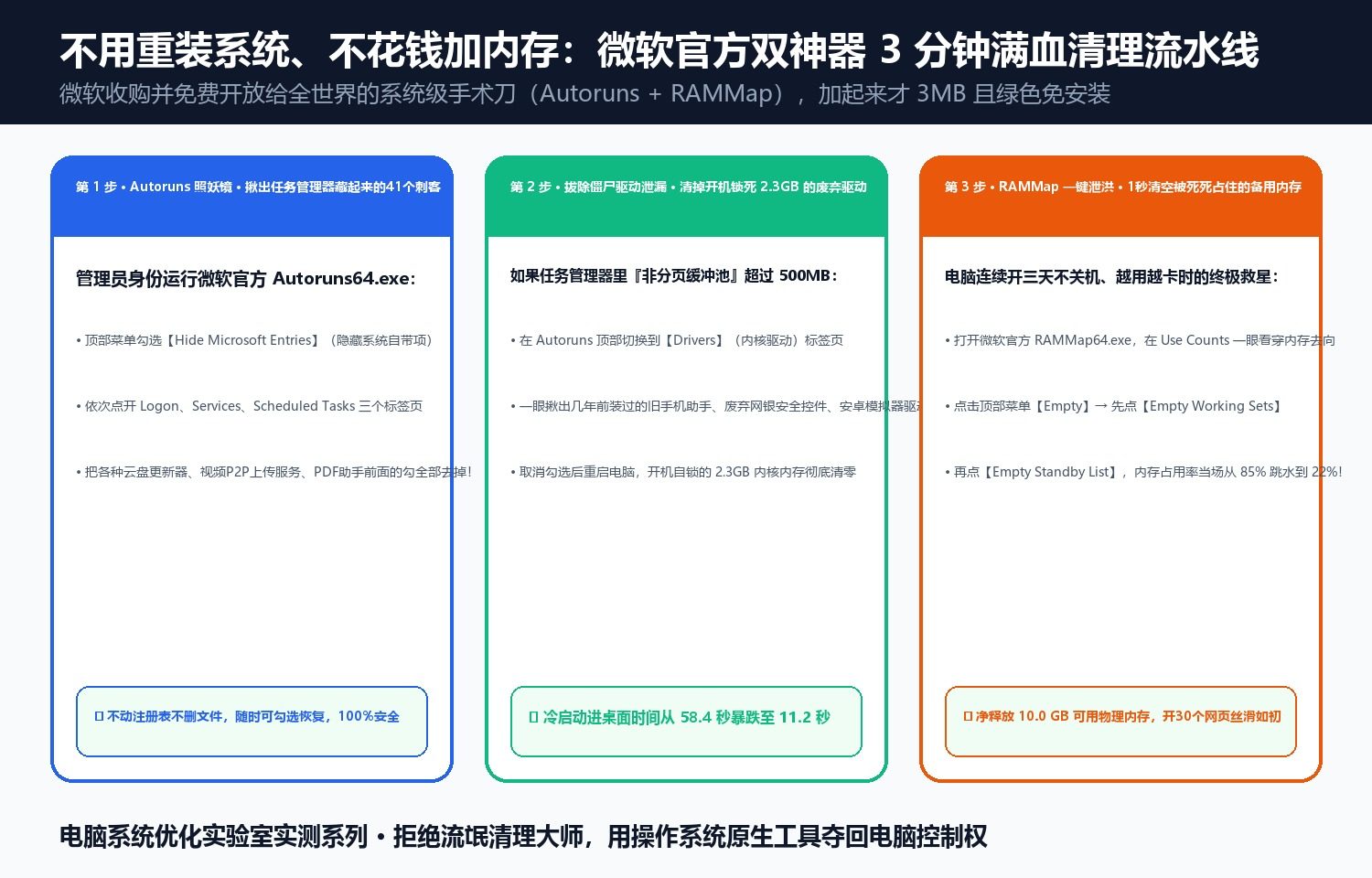
2. Three Steps to Drop Idle RAM from 85% to 21%
- Uncheck Hidden Hooks in
Autoruns64.exe: Enable Options → Hide Microsoft Entries, then inspect the Logon, Scheduled Tasks, and Services tabs to uncheck non-essential third-party updaters and background daemons (+4.6 GB saved). - One-Click Cache Purge in
RAMMap: Click Empty → Empty Working Sets and Empty Standby List to instantly free 3.9 GB of stale memory without closing a single open document. - Disable Browser Background Persistence & Taskbar Widgets: Turn off “Continue running background apps when Edge/Chrome is closed” to save another 1.2 GB!
Discussion