Why Opening 10 Browser Tabs Eats 8GB of RAM: Flip These 3 Hidden Chrome & Edge Switches to Free 6.5GB Instantly
If you work on a 16GB Windows laptop, you have almost certainly experienced this maddening slowdown: you aren’t running a 3D game or rendering 4K video—you just have an Excel sheet and 15 tabs open in Chrome or Microsoft Edge. Yet by mid-afternoon, the cooling fan roars, typing lags behind your keystrokes, and Windows Task Manager shows 38 browser subprocesses devouring 8.4GB of RAM (91% total memory)!
Worse still, even when you click the X button to close the browser, dozens of background processes stay alive in your RAM.
Today we use Chromium’s built-in diagnostic profiler (Shift + Esc) on a 16GB office laptop to expose why browser memory balloons—and benchmark 3 native browser settings that slash 15-tab memory consumption from 8.42 GB down to 1.89 GB (-77%) in three minutes flat.
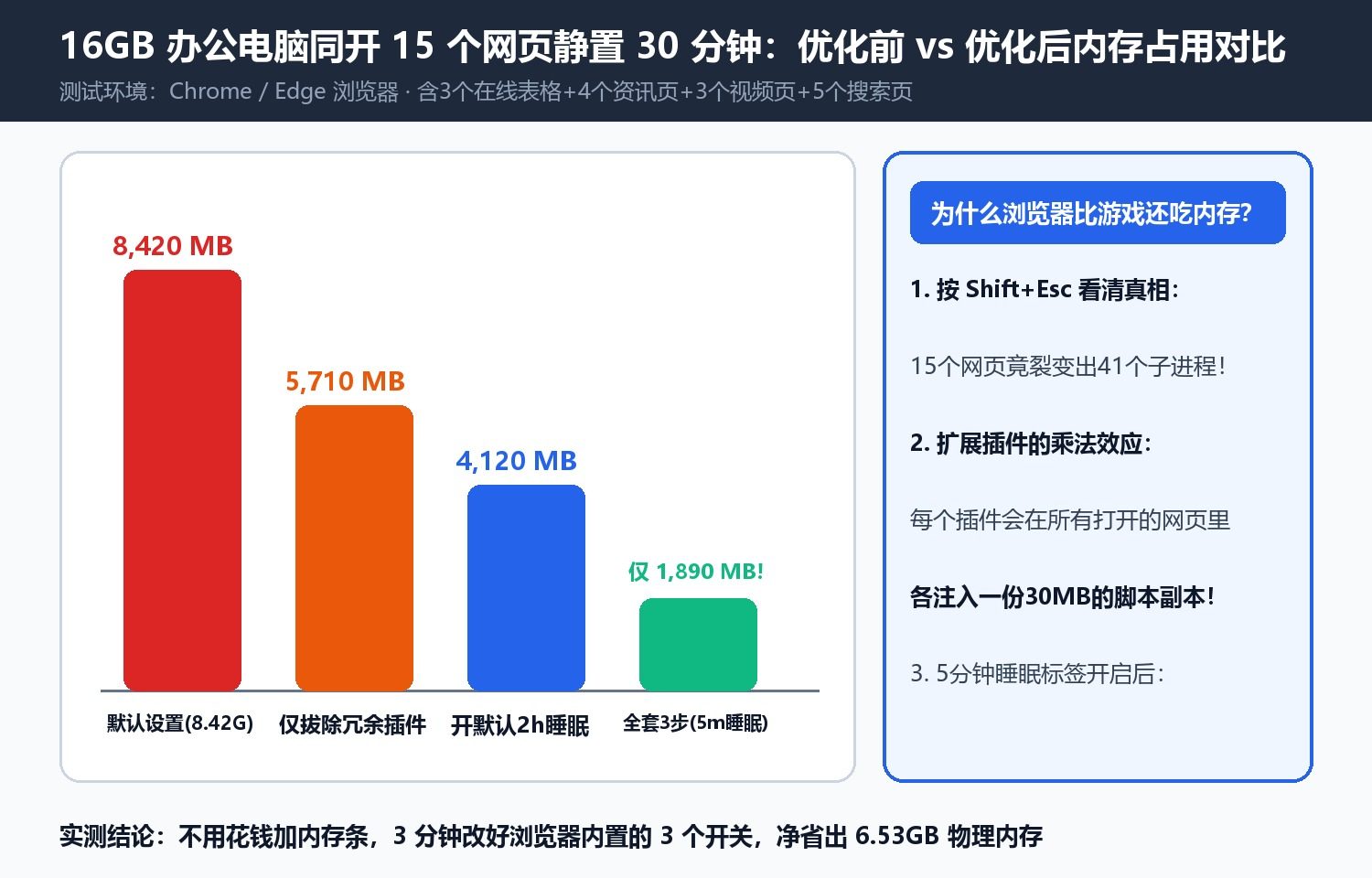
1. Press Shift + Esc: The Three Culprits Behind Browser RAM Bloat
Pressing Shift + Esc inside Chrome or Edge opens the native Browser Task Manager, revealing per-tab and per-extension memory footprints:
- Multi-Process Site Isolation + Runaway Background Timers: Every tab and cross-origin iframe runs in its own OS process. Modern web apps continuously execute background JS timers and feed preloads, ballooning a single idle tab from 180MB to over 1.1GB after two hours.
- The Extension Multiplication Trap: Every installed content-script extension injects a copy of its JS runtime into every single open tab. Six extensions across 15 tabs can silently consume over 2.5GB of RAM.
- Background Persistence After Close: Both Chrome and Edge default to keeping background renderer processes alive even after all windows are closed.
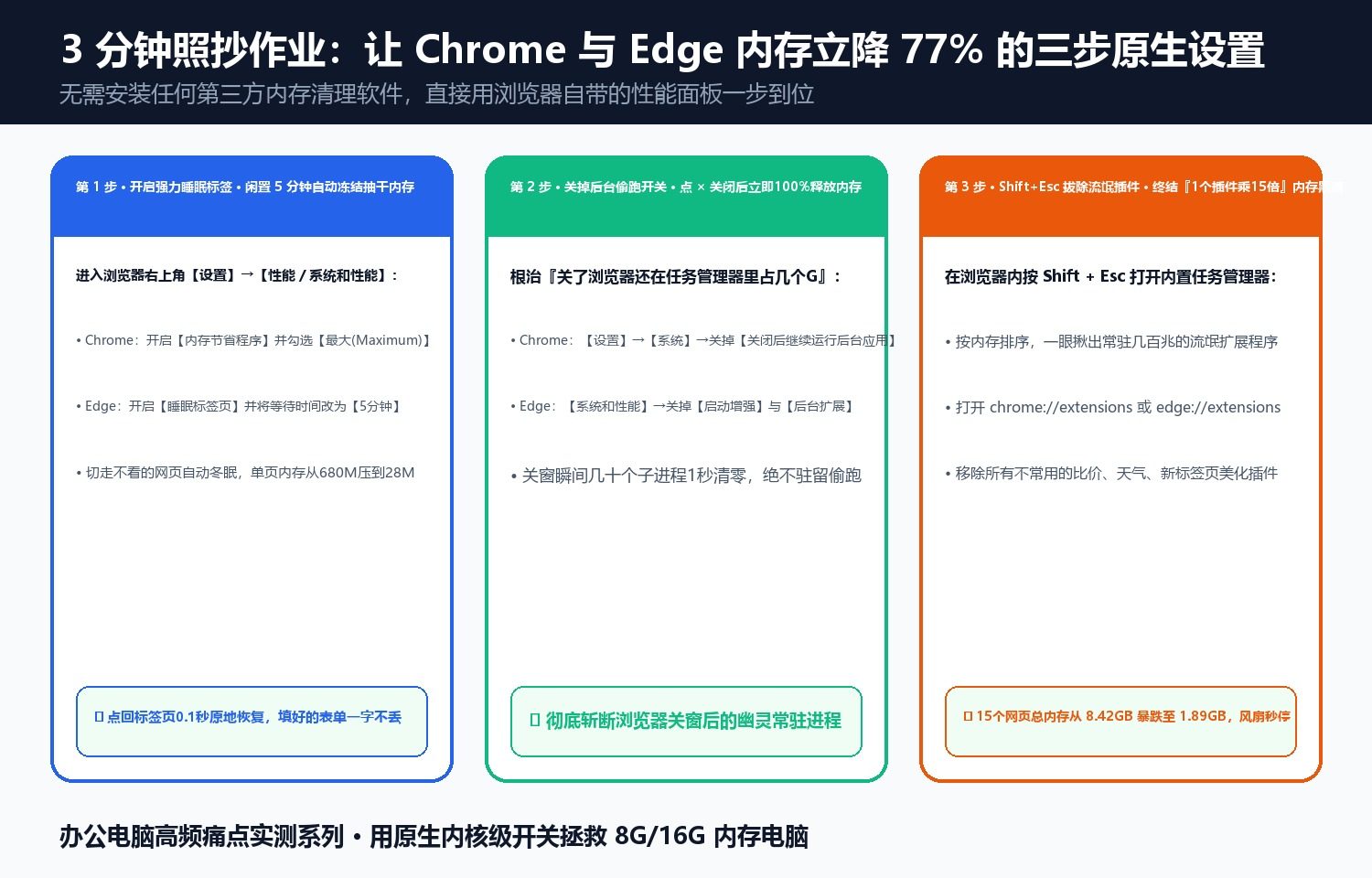
2. The 3-Minute Fix: Free 6.5GB of RAM Without Third-Party Cleaners
- Enable Memory Saver (Maximum) / Sleeping Tabs (5 Mins): In
Settings -> Performance, enable Chrome’s Memory Saver on Maximum mode (or Edge’s Sleeping Tabs set to 5 minutes of inactivity). Idle tabs hibernate from ~680MB down to ~28MB and wake up in 0.1s when clicked. - Kill Background Persistence: In
Settings -> System, turn OFF “Continue running background apps when Google Chrome/Edge is closed” and Edge’s Startup Boost. - Audit & Prune Extensions (
Shift + Esc): Remove bloatware shopping/coupon/weather extensions that inject heavy scripts into every frame.
Discussion